

Working from Home
Training and FAQs for Remote meetings and Online Course
To access training for remote meetings and online courses via Blackboard, please do the following:
- Using GOOGLE CHROME as your browser
- log in to Blackboard https://blackboard.umaryland.edu/
- Enter your UMID and Password.
- Use DUO to authenticate.
- Faculty & Staff NOT teaching courses:
- In the left column menu, click on Organizations
- Click on ORG – School of Dentistry Training
- Click on Clinic Essentials in the left navigation menu
- The folder at the top contains all pertinent info
- Webex is for meetings for UMB Community system ONLY
- However, anyone/everyone can join your meeting.
- NOTE: If you are discussing/presenting UMB-related proprietary information, please only invite UMB community system participants.
- Faculty teaching courses remotely
- In the left column menu, click on Organizations
- Click on Academic Courses COOP Plan
- Webex is for meetings for UMB Community system ONLY
- However, anyone/everyone can join your meeting.
- NOTE: If you are discussing/presenting UMB-related proprietary information, please only invite UMB community system participants.
- MyMediasite is for course lectures and recordings.
OIT FAQs and HELP
- Make sure you have the DUO app on your phone
- Please email sodhelp@umaryland.edu for all technical issues.
- Contact campus if you'd like your phone messages sent as email attachment. help@umaryland.edu OR 410-706-HELP (4357).
- You can access the CITS links for Webex by clicking on the "i" button at the bottom of the Webex tutorial video.
- If you have a UMB-SOD laptop, the password is Dental001.
VPN and Remote Desktop (work from home, on your office PC) ▾
To login to your office computer remotely, you will need to install the Palo Alto GlobalProtect VPN Client, is a web-based VPN client that is a secure method of accessing UMB computer resources.
To install Palo Alto GlobalProtect, please follow the instructions below:
Palo Alto GlobalProtect Installation Instructions for Windows
- Connect to https://umbvpn.umaryland.edu
- You get redirected to WebAuth and are prompted to log in. Log in with your UMID and
- A successful login takes you to the DUO Multi-factor Authentication (MFA) Prompt. Choose a method to complete DUO MFA
- This takes you to the GlobalProtect Client download page. Download the appropriate GlobalProtect agent for your Operating System. Most users will choose the Windows 64 bit GlobalProtect agent.
- After the file downloads, Click on the arrow next to the downloaded file and click on
- The installer Click Next when prompted.
- Leave the installation folder at the default and click Next
- Click Next to Confirm
- Click Close when the installation
- Click on the GlobalProtect icon in your lower right system tray. You can also open GlobalProtect from Program Files
- Enter umaryland.edu as the portal address and click Connect
- Log in with your UMID and
- If you are prompted, choose a method to complete DUO MFA
- You should now be connected to the Palo VPN
Palo Alto GlobalProtect Installation Instructions for Mac
- Connect to https://umbvpn.umaryland.edu
- You get redirected to WebAuth and are prompted to log Log in with your UMID and Password.
- A successful login takes you to the DUO Multi-factor Authentication (MFA) Choose a method to complete DUO MFA
- This takes you to the GlobalProtect Client download Download the Mac 32/64 bit GlobalProtect agent.
- Open the pkg file
- Chose Continue to proceed with the installation
- Select GlobalProtect and GlobalProtect System Click on Continue
- When the installation completes, you may be notified that the GlobalProtect system extension is blocked. Click on Open Security Prefernces
- Click on Allow to allow the GlobalProtect extension
- Enter umaryland.edu in the Portal Address field and click Connect.
- Login with your UMID and Password
- You are now connected to the Palo Alto GlobalProtect client
Accessing E-Mail
You can access your work e-mail at home simply by opening up your web browser (Internet Explorer, Firefox, Chrome, Safari) and going to Outlook.office365.com. Note: off-campus access may require Duo.
Make sure to enter your login with your complete email address (<username>@umaryland.edu).
You may receive a message that you are being redirected - this is normal.
Accessing Webapps/Dentalapps
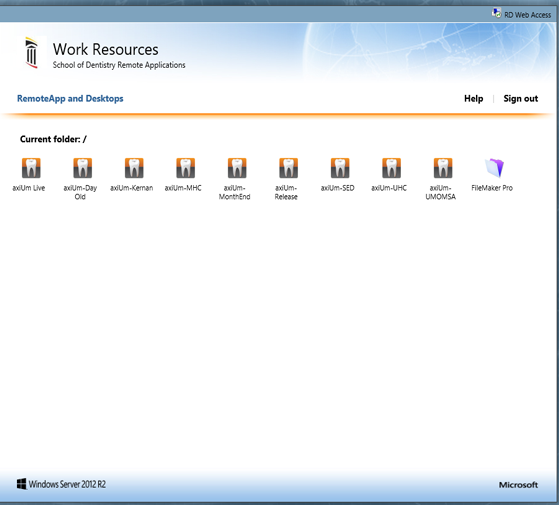
If you need access to Axium or MiPACS from home, you can access it from any computer with internet access and web browser. Note: you must be connected to VPN to access Dentalapps (see instructions above).
Simply visit https://dentalapps.dental.umaryland.edu and press the Connect button (you do not need to enter a server name).
Enter Dental\UserName, Then your Network Password.
If you are having problems and cannot press the Connect button because it is grayed out, do the following:
- In Internet Explorer click Tools and select Internet Options from the menu.
- Select the Security tab and click on Trusted Sites, then click the Sites button.
- Then, add https://dentalapps.dental.umaryland.edu to the list of trusted sites.
Next Click the Sign in button
Next Click Axium Live button.
You should be presented with a Windows logon box, simply Click Connect, then OK
Login again user Network UserName and password. *You do NOT need the Dental\*